Guía de bloques de campo
Campos desplegables
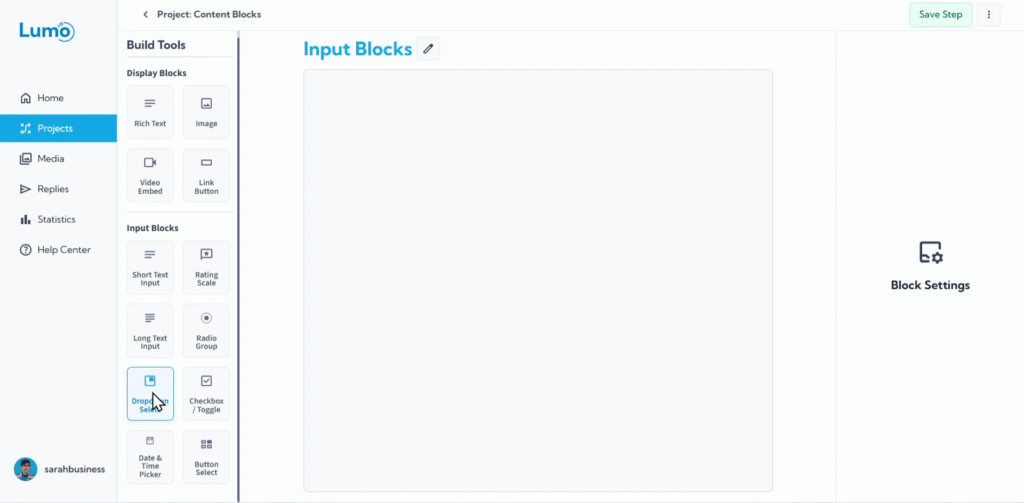
Cuando necesita que los usuarios seleccionen de una lista de opciones predefinidas, especialmente si esa lista es larga o desea mantener su formulario compacto, el campo Dropdown es una excelente opción. Este bloque de campo presenta las opciones en un menú conciso y expandible, ideal para mantener su formulario ordenado.
Esta guía explicará cómo configurar campos Dropdown en su Lumo.
¿Qué es un campo Dropdown?
Un campo Dropdown (o bloque "Dropdown") presenta una lista de opciones en un menú compacto y plegable. Los usuarios hacen clic en el campo para "desplegar" la lista y seleccionar su opción deseada. Es particularmente útil para:
- Listas con muchas opciones (por ejemplo, países, categorías de productos).
- Conservar espacio vertical en su formulario.
Paso a paso: agregar un campo Dropdown
Configure los ajustes principales del campo: Después de agregar el bloque, configurará sus propiedades esenciales:
Field Label: Esta es la pregunta o instrucción presentada al usuario.
Selection Type: Decida cuántas opciones pueden elegir los usuarios:
- Single Choice: Los usuarios pueden seleccionar solo una opción de la lista desplegable.
- Multiple Choice: Los usuarios pueden seleccionar una o más opciones de la lista desplegable (esto normalmente cambia ligeramente la interfaz visual, permitiendo selecciones múltiples).
Edit Content of Each Option: Aquí define las opciones específicas que aparecerán en la lista desplegable.
- Haga clic en "Add Option" para crear un nuevo elemento en su lista.
- Introduzca el texto de cada opción (por ejemplo, "Main Street Branch", "Downtown Cafe", "Online Order Pickup Point").
- Puede agregar tantas opciones como necesite.
- Reordene las opciones arrastrándolas hacia arriba o abajo usando el control junto a cada opción.
Guardar sus cambios
Después de configurar su campo Dropdown, recuerde guardar sus cambios manualmente haciendo clic en el botón "Save" en el editor.
Si intenta salir del editor sin guardar, LumoPages le recordará guardar su trabajo. Preste siempre atención a estos avisos para evitar perder su progreso, ¡especialmente si su Lumo está en vivo!
Los campos Dropdown son muy eficaces para gestionar listas largas de opciones, manteniendo su formulario optimizado y sin desorden. Son una forma profesional de estandarizar la entrada del usuario y asegurar la consistencia de los datos.