Guía de bloques de campo
Campos de casilla de verificación
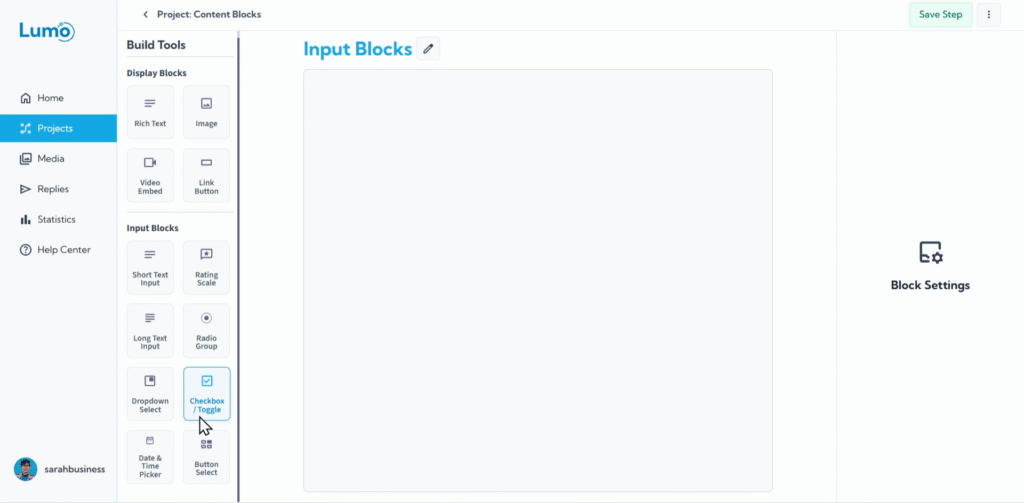
Los checkboxes son una forma fundamental de recopilar opciones binarias (sí/no, true/false) o permitir que los usuarios seleccionen múltiples opciones independientes de una lista. El block Checkbox en LumoPages proporciona un método directo y visual para que los usuarios indiquen acuerdo, opt-in o elijan entre un conjunto de opciones no exclusivas.
Esta guía explicará cómo configurar campos Checkbox en su Lumo.
¿Qué es un campo Checkbox?
Un campo Checkbox muestra una casilla pequeña que los usuarios pueden hacer clic para "marcar" (seleccionar) o "desmarcar" (deseleccionar) una opción. Se utiliza para:
- Opciones binarias independientes: Para una pregunta individual de tipo "sí" o "no" (por ejemplo, "Acepto los términos").
- Selecciones múltiples: Cuando presenta varios checkboxes, los usuarios pueden seleccionar cualquier combinación (por ejemplo, "Seleccione sus sabores favoritos: Chocolate, Vanilla, Strawberry").
- Toggle vs. Box Type: LumoPages ofrece variaciones visuales, permitiéndole mostrarlo como una casilla cuadrada tradicional o un "toggle" más moderno.
Paso a paso: agregar un campo Checkbox
Configure el Checkbox: Después de agregar el block, configurará sus propiedades:
Type: Elija cómo se muestra visualmente el checkbox:
- Box: Un checkbox cuadrado tradicional.
- Toggle: Un elemento de UI similar a un interruptor, a menudo usado para estados "On/Off".
Guardar sus cambios
Recuerde siempre guardar manualmente sus cambios después de configurar campos Checkbox haciendo clic en el botón "Save" en el editor.
Si intenta salir del editor sin guardar, LumoPages le recordará que guarde su trabajo. Esto garantiza que el diseño y la configuración de su formulario se conserven.
Los Checkboxes son excelentes para opciones claras y directas y para permitir que los usuarios seleccionen múltiples elementos de una lista presentada. Contribuyen a una interfaz de usuario limpia e intuitiva.