Construir tu Lumo
Organizar, duplicar y eliminar bloques
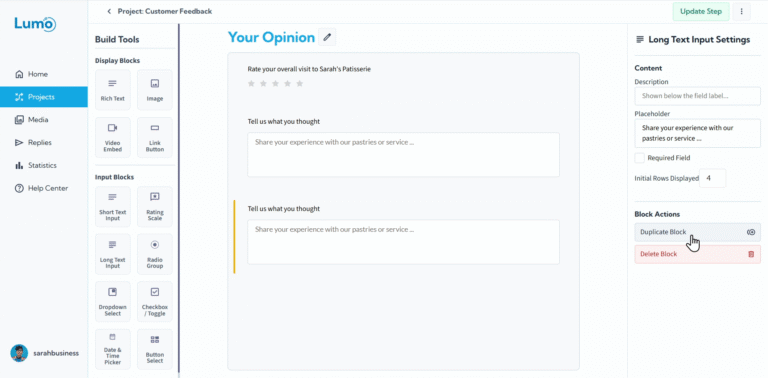
Una vez que haya agregado blocks a los stages de su Lumo, querrá organizarlos en el orden correcto, duplicar los que desee reutilizar o eliminar los que ya no necesite. LumoPages le brinda control total sobre la gestión de blocks dentro de sus stages.
Organizar blocks
Puede reordenar blocks dentro de un stage mediante arrastrar y soltar:
- Arrastrar y soltar: Haga clic y mantenga presionado un block, luego arrástrelo a una nueva posición dentro del stage. Suéltelo para colocarlo en la ubicación deseada.
- El orden de los blocks en el editor refleja el orden que verán sus usuarios al completar el Lumo.
Duplicar blocks
Si necesita un block similar con la misma configuración, duplicar ahorra tiempo:
- Pase el cursor sobre o seleccione el block que desea copiar.
- Haga clic en el botón Duplicate (o icono) para crear una copia exacta del block.
- El block duplicado aparece directamente debajo del original, listo para personalizarse.
Eliminar blocks
Para eliminar un block que ya no necesita:
- Pase el cursor sobre o seleccione el block que desea eliminar.
- Haga clic en el botón Delete (o icono de papelera).
- Confirme la eliminación cuando se le solicite. Una vez eliminado, el block y su contenido se eliminan permanentemente.
Guardar sus cambios
Después de organizar, duplicar o eliminar blocks, recuerde guardar su proyecto manualmente. Los cambios no se guardan automáticamente. Haga clic en el botón Save para asegurarse de que se conserven todas sus actualizaciones.
Con estas herramientas, puede iterar rápidamente en la estructura de su Lumo, manteniendo sus formularios bien organizados y fáciles de completar para su audiencia.