Diseñar tu Lumo
Personalizar el diseño de tu Lumo
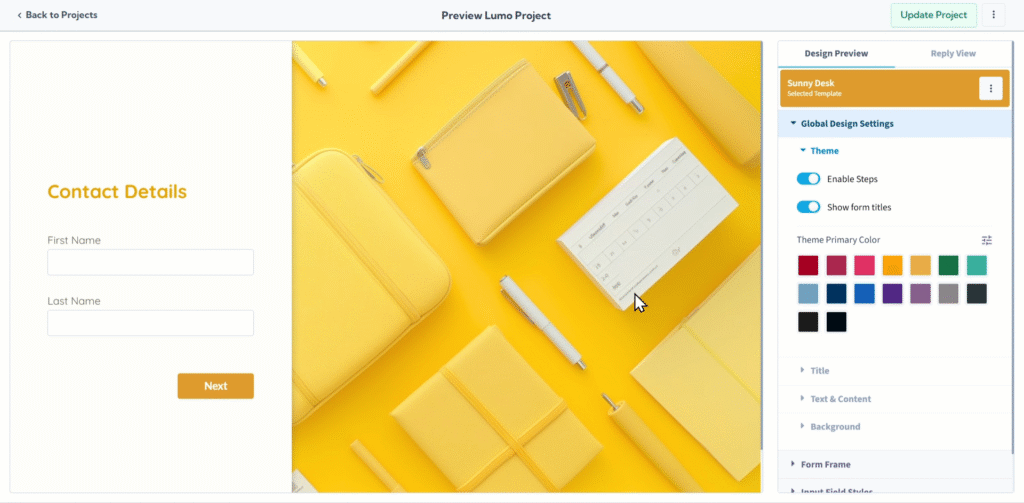
Aunque las plantillas ofrecen un excelente punto de partida, LumoPages le da un control granular sobre casi todos los aspectos visuales de su Lumo. Esto significa que puede ajustar colores, fuentes, espaciado y más, asegurando que su formulario digital coincida perfectamente con la identidad de su marca y su visión estética. Este nivel de personalización le permite crear una experiencia de usuario verdaderamente única y profesional.
Esta guía completa le mostrará las amplias opciones de personalización visual disponibles en LumoPages.
Acceder a las opciones de personalización de diseño
- Entre en el editor de su proyecto: Navegue al proyecto Lumo cuyo diseño desea personalizar.
- Acceda a la configuración de "Design Preview": En el editor del proyecto, haga clic en la pestaña o elemento de menú "Preview & Design". Este panel es donde encontrará todas las herramientas de personalización visual.
Una plantilla elegida ofrece una base sólida, pero el poder de personalizar siempre está en sus manos. Luego puede profundizar en las opciones de personalización para adaptar cada elemento de diseño a sus preferencias exactas.
El panel "Design" es su puerta de entrada a la personalización detallada. Aquí encontrará categorías organizadas cuidadosamente, cada una ofreciendo control preciso sobre diferentes elementos de diseño.
Configuración de diseño global
Estas configuraciones proporcionan controles generales que influyen en el aspecto y la sensación general de su Lumo en todas las etapas, estableciendo la base de su diseño.
Theme
Este es su punto de partida para el diseño general.
- General Theme Settings: Defina la estética general.
- Enable Steps: Active o desactive para guiar visualmente a los usuarios a través de Lumos de varias etapas con indicadores de progreso claros (por ejemplo, "Step 1 of 3").
- Show or Hide Form Titles: Decida si mostrar los títulos de las etapas de su formulario o el título principal del formulario para una presentación más limpia o detallada.
- Primary Color Selection: Aquí establece el tono distintivo de su marca. LumoPages aplica inteligentemente el color elegido como predeterminado para elementos clave como botones, títulos principales y acentos en todo su Lumo, asegurando una coherencia de marca instantánea.
Title
Dedique atención al encabezado principal de su Lumo.
- Text Font, Color, Size, and Weight: Elija la familia de fuentes perfecta, seleccione su color y ajuste su tamaño y grosor para que el título de su Lumo destaque y se alinee con su tipografía.
- Text Alignment: Posicione con precisión su título estableciendo su alineación horizontal (izquierda, centro o derecha).
Text & Content
Controle la legibilidad y la apariencia de todo el texto del cuerpo y el contenido general de su formulario.
- Text Font, Color, Size, and Weight: Seleccione la familia de fuentes, elija su color y ajuste su tamaño y grosor para su texto instructivo, descripciones y cualquier bloque de contenido, asegurando una lectura clara y cohesión de marca.
- Text Alignment: Defina la alineación horizontal para su texto del cuerpo (izquierda, centro o derecha).
Background
Personalice el fondo de toda la página de su Lumo.
- Background Type: Elija su tipo de fondo de un menú desplegable: Color, Image o Gradient.
- Color Selection: Si elige "Color", seleccione de una paleta de colores predefinidos o elija un color personalizado.
Configuración del marco del formulario
Estas configuraciones controlan el contenedor general que alberga el contenido de su formulario en la página, dando forma a su apariencia y ubicación.
Container
Esto controla la estructura fundamental y la posición de la caja principal de su formulario en la página.
- Form Frame Position: Alinee con precisión todo el marco de su formulario en la página (por ejemplo, Left, Center, Right).
- Frame Width & Height: Ajuste las dimensiones del contenedor de su formulario usando las opciones "Default", "Limited" o "Full" para hacerlo compacto, expansivo o ajustado a su contenido.
- Padding of Frame: Ajuste el espacio interno entre el borde del marco y su contenido, asegurando una lectura cómoda y equilibrio visual.
- Margin of Frame: Controle el espacio externo alrededor del marco en la página, definiendo su ubicación respecto a otros elementos y el diseño general de la página.
Background
Personalice el fondo dentro del contenedor específico de su formulario.
- Background Type: Elija su tipo de fondo de un menú desplegable: Color, Image o Gradient.
- Color Selection: Si elige "Color", seleccione de una paleta o elija un color personalizado (similar a la selección de color de fondo global, pero aplicada específicamente al marco del formulario).
Border
Añada un borde elegante y definición visual al marco de su formulario.
- Border Size, Color, and Style: Defina el grosor, tono y patrón (Default, Thin, Thick, Dashed) del borde exterior.
- Corner Radius: Ajuste la redondez de las esquinas del marco de su formulario, desde cuadrados afilados hasta bordes bellamente redondeados.
- Shadow Spread and Color: Aplique sombras sutiles o pronunciadas, controlando su extensión y color, para dar a su formulario sensación de profundidad y hacerlo destacar de la página.
Estilos de campos de entrada
La sección "Input Field Styles" le da el poder de diseñar cada campo de entrada con el que interactúan sus usuarios, asegurando una experiencia consistente, intuitiva y visualmente atractiva en todo su Lumo.
Field Input
Controle aspectos específicos del área de entrada en sí.
- Mark Required Fields: Active o desactive esta opción para indicar visualmente qué campos son obligatorios para el envío (por ejemplo, con un asterisco rojo
*), guiando a los usuarios a completar la información esencial.
Container
Controle la apariencia y la ubicación del área que rodea cada campo de entrada.
- Alignment of Field: Defina la alineación horizontal del campo de entrada dentro de su contenedor.
- Width of Field: Establezca el ancho del campo para que encaje perfectamente en su diseño, ya sea predeterminado, limitado o ancho completo.
Border
Aplique bordes personalizados a sus campos de entrada para un acabado visual adicional.
- Border Size, Color, and Style: Ajuste el grosor, color y patrón (Default, Thin, Thick, Dashed) del borde del campo de entrada.
- Corner Radius: Redondee las esquinas de sus campos de entrada para un aspecto más suave y moderno.
- Shadow Spread and Color: Añada sombras sutiles o pronunciadas para dar a los campos un ligero relieve.
Estilos de botones
La sección "Button Styles" es donde diseña sus llamadas a la acción, haciéndolas irresistibles y perfectamente acordes a su marca.
Container
Controle la ubicación y el tamaño general de sus botones.
- Alignment of Buttons: Establezca la alineación horizontal de sus botones (por ejemplo, Left, Center, Right) para una ubicación óptima.
- Width of Buttons: Defina el ancho de sus botones (por ejemplo, Default, Limited, Full) para controlar su presencia visual.
Font
Personalice el texto que aparece en sus botones para el máximo impacto.
- Text Font, Color, Size, and Weight: Elija la familia de fuentes, seleccione su color y ajuste su tamaño y grosor para una lectura clara y alineación de marca.
- Text Alignment: Ajuste la alineación del texto dentro del botón mismo (por ejemplo, left, center, right).
Border
Añada un borde elegante a sus botones.
- Border Size, Color, and Style: Defina el grosor, tono y patrón (Default, Thin, Thick, Dashed) del borde del botón.
- Corner Radius: Ajuste la redondez de las esquinas para botones redondeados o afilados.
- Shadow Spread and Color: Aplique sombras sutiles o pronunciadas para hacer que sus botones destaquen y añadan profundidad.
Basic Button Color
Aunque el color del tema principal a menudo establece los valores predeterminados de los botones, puede definir específicamente el color para botones no principales (por ejemplo, un botón "Back" podría tener un color diferente y menos prominente que un botón "Submit").
- Color Selection: Elija el color específico para estos botones de una paleta.
Diseño iterativo y vista previa
Personalizar el diseño de su Lumo suele ser un proceso iterativo. Haga un cambio y luego use la función Preview para ver cómo se ve en tiempo real. Esto le permite ajustar hasta que todo sea perfecto.
Guardar los cambios de diseño de su Lumo
Todas sus personalizaciones de diseño forman parte de la configuración general de su proyecto. Es crucial guardar los cambios manualmente después de configurar su diseño. Haga clic siempre en el botón "Save" prominente en el editor.
Si intenta salir del editor después de hacer cambios de diseño sin guardar, LumoPages le recordará guardar su trabajo. Esto es vital para asegurar que la apariencia actualizada de su Lumo esté activa, especialmente si está publicado y accesible para los usuarios.
Con las opciones de personalización de diseño completas de LumoPages, tiene el poder de crear un Lumo que no solo funcione a la perfección, sino que también refleje perfectamente la identidad única de su marca. Invierta tiempo en estos detalles y sus formularios digitales realmente destacarán.