Diseñar tu Lumo
Aplicar y administrar plantillas
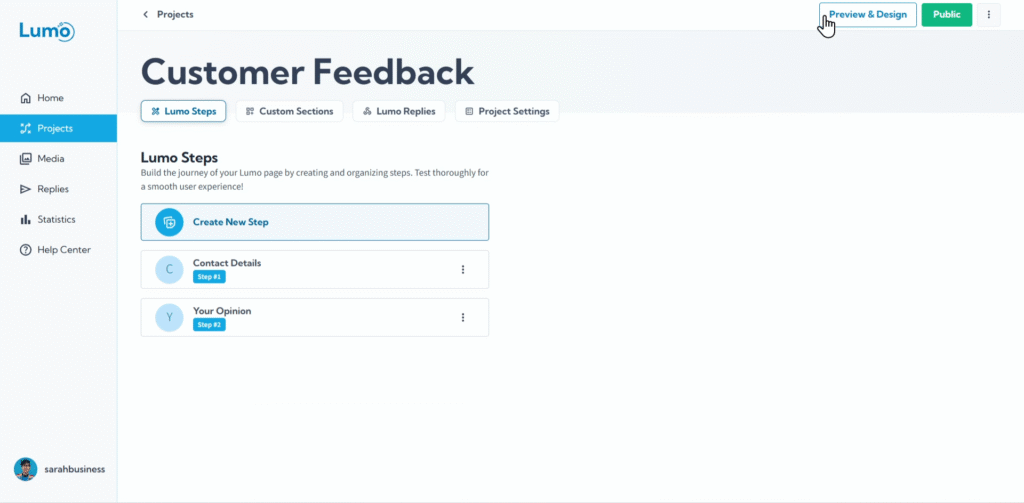
En LumoPages, hemos separado la lógica de creación de formularios y su configuración del diseño. Esto permite un diseño flexible que no depende del contenido y se actualiza automáticamente con contenido nuevo. Esto garantiza una experiencia de usuario fluida y consistente tanto en apariencia como en funcionalidad. Un Lumo bien diseñado no solo funciona perfectamente, sino que también se ve genial. LumoPages le ayuda a lograr una estética impresionante con facilidad a través de su sistema de Templates. Los Templates proporcionan diseños prediseñados, esquemas de color y combinaciones de fuentes que puede aplicar con un solo clic, dando a sus formularios una renovación profesional instantánea.
Esta guía le mostrará cómo aplicar templates existentes, cómo guardar sus diseños personalizados como templates personales y cómo gestionarlos.
¿Qué son los Templates?
Un Template es un plano de diseño prediseñado para su Lumo. Incluye:
- Layout: La disposición general de los elementos.
- Color Schemes: Conjuntos coordinados de colores para fondos, text, botones y campos.
- Font Pairings: Combinaciones armoniosas de fuentes.
- Basic Styling: Estilos predefinidos para bordes, sombras y otros efectos visuales.
Los Templates son un excelente punto de partida, ahorran tiempo y garantizan que su Lumo se vea pulido sin necesidad de amplios conocimientos de diseño.
Paso a paso: aplicar un nuevo Template
Seleccionar y aplicar un Template:
- Haga clic en una miniatura de template para previsualizarlo o seleccionarlo.
- Confirme que desea "Apply Template" si se le solicita. El diseño de su Lumo se transformará instantáneamente para reflejar el template elegido.
¡No tenga miedo de experimentar! Puede cambiar templates en cualquier momento, incluso después de aplicar uno. Hasta que guarde activamente los cambios, no se aplicará ningún cambio.
Aplicar un nuevo template anulará la configuración de diseño actual.
Se pueden agregar nuevos templates globales y los templates globales actuales pueden cambiar; esto no afectará a Lumos anteriores que usen versiones anteriores del mismo template.
Gestionar sus Templates personales
Después de aplicar un template, a menudo querrá hacer ajustes ligeros para que coincida perfectamente con su marca. LumoPages le permite guardar estos diseños personalizados como sus propios templates personales, para reutilizarlos en múltiples proyectos.
1. Guardar un diseño personalizado como Template personal
- Personalice su Lumo: Después de aplicar un template, realice los cambios deseados utilizando las opciones de personalización de diseño (por ejemplo, cambiar un color, fuente o estilo de botón específico).
- Localice "Save as New Template": En la configuración "Design", después de realizar cambios, busque una opción como "Save as New Template".
- Nombre su Template personal: Dé a su template personalizado un nombre claro y reconocible.
- Confirme el guardado: Haga clic en "Save". Su diseño personalizado aparecerá ahora en su Template Gallery en la sección "My Templates" o "Personal".
2. Actualizar un Template personal existente
Si ha realizado más ajustes de diseño en un Lumo que usa uno de sus templates personales y desea que esos cambios formen parte del template para uso futuro:
- Realice cambios: Modifique el diseño del Lumo según desee.
- Localice "Update Template": En la configuración "Design Preview", seleccione su template personal existente de la galería. Luego verá una opción como "Update Current Template".
3. Eliminar un Template personal
Si ya no necesita un template personal:
- Seleccione el Template personal: En su Template Gallery, navegue al área "Your Saved Templates" y seleccione el template que desea eliminar.
- Localice "Delete Template": Haga clic en el menú del template y seleccione "Delete Template".
Guardar los cambios de diseño de su Lumo
Ya sea que aplique un nuevo template, personalice uno existente o guarde un nuevo template personal, recuerde siempre guardar manualmente su Lumo haciendo clic en el botón prominente "Update Project" en su editor.
Los Templates proporcionan una base poderosa para el diseño de su Lumo, y los templates personales le permiten mantener una marca consistente sin esfuerzo en todos sus formularios digitales. ¡Experimente con estas funciones para crear Lumos visualmente impresionantes y cohesionados!