Primeros pasos
Cambiar tu contraseña
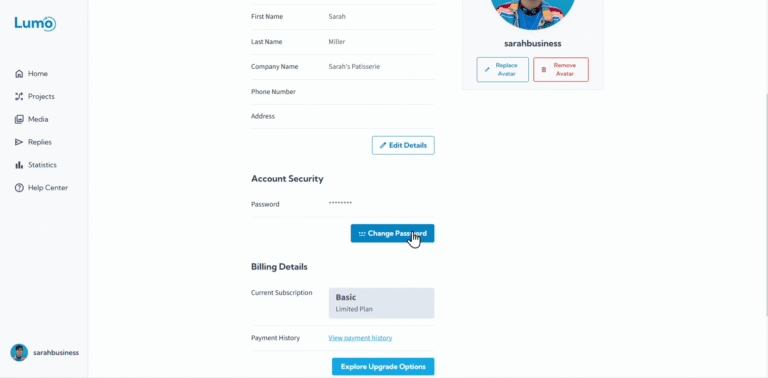
Mantener la seguridad de su cuenta de LumoPages es fundamental, y actualizar regularmente su contraseña es una parte clave de ello. Ya sea que desee cambiar su contraseña por mayor seguridad o porque ha olvidado la actual, LumoPages proporciona pasos claros para ayudarle.
Esta guía le mostrará el proceso de cambio de contraseña. Cubriremos ambos escenarios: cambiarla cuando conoce su contraseña actual y restablecerla si la ha olvidado.
Escenario 1: cambiar su contraseña cuando la conoce
Este es el escenario más común para actualizaciones rutinarias de contraseña.
- Navegue a Account Management: Desde el panel de LumoPages, haga clic en "Account Management" en el menú de navegación principal.
- Acceda a la configuración de contraseña: Dentro de Account Management, busque una pestaña o enlace etiquetado como "Security", "Password" o "Change Password". Haga clic para continuar.
Ingrese contraseñas actuales y nuevas: Normalmente se le pedirá que ingrese:
- Current Password: Su contraseña existente de LumoPages.
- New Password: La nueva contraseña que desea usar.
- Confirm New Password: Vuelva a ingresar su nueva contraseña para confirmar que coincide.
Elija una contraseña fuerte y única. Apunte a una combinación de letras mayúsculas y minúsculas, números y símbolos. Evite usar información fácil de adivinar como cumpleaños o frases comunes. Un administrador de contraseñas puede ayudarle a crear y almacenar contraseñas seguras.
- Guarde los cambios: Haga clic en "Save Changes", "Update Password" o un botón similar para finalizar la actualización. Normalmente recibirá un mensaje de confirmación.
Escenario 2: restablecer su contraseña cuando la ha olvidado
Si ha olvidado su contraseña y no puede iniciar sesión, necesitará usar la función de recuperación de contraseña.
- Vaya a la página de inicio de sesión de LumoPages: Abra su navegador web y vaya al sitio web de LumoPages. Haga clic en el botón "Login" o "Sign In".
- Haga clic en "Forgot Password?": En la pantalla de inicio de sesión, debajo de los campos de email y contraseña, encontrará un enlace etiquetado como "Forgot Password?" Haga clic en este enlace.
- Ingrese su dirección de email registrada: Se le pedirá que ingrese la dirección de email asociada con su cuenta de LumoPages.
Reciba código de verificación/enlace: LumoPages enviará un enlace de restablecimiento de contraseña o un código de verificación a su dirección de email registrada.
Siga las instrucciones:
- Si es un enlace, haga clic directamente en él.
- Si es un código, copie el código y péguelo en el campo designado en el sitio web de LumoPages.
Tenga cuidado con intentos de phishing. Solo haga clic en enlaces de restablecimiento de contraseña de emails oficiales de LumoPages y asegúrese de que la URL del sitio web sea legítima antes de ingresar cualquier información.
Establezca su nueva contraseña: Después de verificar exitosamente su email (mediante enlace o código), será dirigido a una página donde puede establecer una contraseña completamente nueva.
- Ingrese su nueva contraseña.
- Confirme su nueva contraseña.
- Haga clic en "Reset Password" o "Save New Password".
Cambiar o restablecer su contraseña con éxito garantiza que su cuenta de LumoPages permanezca segura y accesible solo para usted. Recuerde siempre usar contraseñas fuertes y únicas para todas sus cuentas en línea.
A continuación, veremos cómo personalizar su experiencia de LumoPages mediante Setting Your Language Preferences.