Secciones personalizadas globales
Configurar el pie de página del proyecto
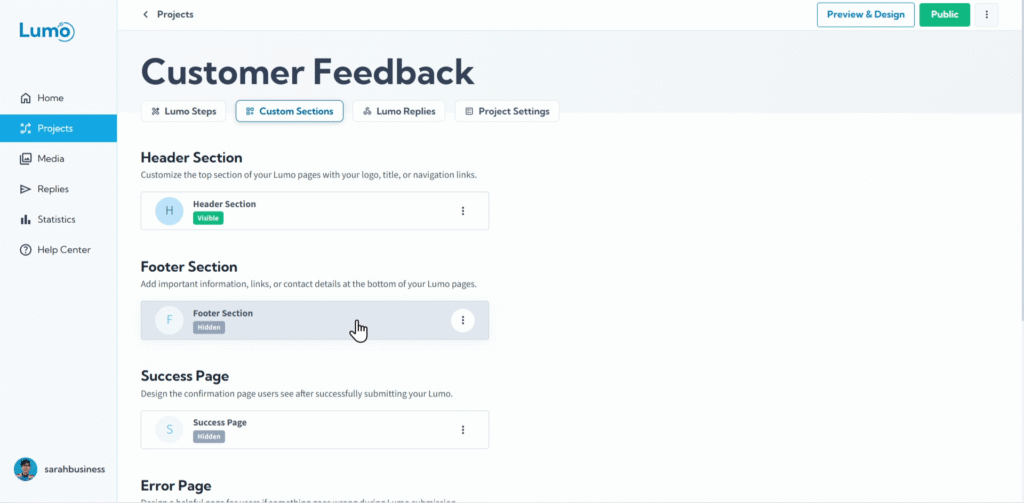
Mientras el header establece el tono en la parte superior de su Lumo, el footer proporciona información complementaria importante en la parte inferior de cada stage. Es un lugar ideal para detalles de "About Us", enlaces cruciales o información de contacto, ofreciendo un cierre profesional a su formulario digital.
Esta guía le mostrará cómo agregar y configurar un footer personalizado para su proyecto Lumo.
¿Qué es un Project Footer?
Un Project Footer es una sección dedicada que aparece consistentemente en la parte inferior de cada stage de su Lumo. Comúnmente se usa para información de derechos de autor, enlaces rápidos, detalles de contacto o una breve declaración de "About Us", proporcionando un cierre profesional e informativo a su formulario.
Paso a paso: agregar y configurar su Project Footer
Agregue sus elementos de footer: El footer en LumoPages suele ser bastante flexible, a menudo admitiendo múltiples secciones distintas:
About Section
Esta es un área de rich text donde puede proporcionar una breve descripción de su empresa u organización. Puede incluir un título (por ejemplo, "About Us"), agregar contenido rich text e incluso incluir su logo.
- Normalmente puede ajustar el tamaño del logo o título dentro de esta sección.
Hasta 3 secciones de Links
LumoPages a menudo proporciona múltiples secciones "Link" dedicadas dentro del footer, permitiéndole categorizar sus enlaces externos. Cada sección generalmente tiene:
- Un encabezado/título: Para el grupo de enlaces (por ejemplo, "Quick Links", "Our Products", "Connect With Us").
- Enlaces ilimitados: Puede agregar tantos enlaces individuales como necesite bajo cada encabezado. Para cada enlace, definirá:
- Link Text: Lo que ve el usuario (por ejemplo, "Our Website", "Instagram", "Contact Us").
- Link URL: La dirección web a la que será dirigido el usuario (por ejemplo,
https://www.sarahspatisserie.com,https://www.instagram.com/sarahspatisserie).
Diseñe la apariencia de su footer
Más allá del contenido, puede personalizar el aspecto del footer:
Footer Height: Ajuste el tamaño vertical del área del footer.
- Esto ayuda a controlar cuánto espacio ocupa su footer en la página.
Background Color: Establezca un color de fondo personalizado para el footer.
Un footer bien organizado con enlaces claros mejora la navegación del usuario y proporciona información esencial sin saturar el contenido principal de su formulario. Piense en qué información podrían necesitar sus usuarios después de interactuar con su formulario.
Guardar sus cambios
Todas las modificaciones al footer de su proyecto forman parte de la configuración general del proyecto. Recuerde guardar manualmente sus cambios después de configurar su footer. Busque el botón "Save" en su editor y haga clic en él.
El footer aparece en todos los stages de su Lumo. Cualquier cambio que guarde aquí se reflejará consistentemente en todo su formulario. Si intenta salir del editor sin guardar, LumoPages le recordará que guarde su trabajo, ¡lo cual es crítico si su Lumo está actualmente en vivo!
Un Project Footer bien configurado complementa su header al proporcionar información secundaria importante y enlaces, contribuyendo a una experiencia de usuario profesional y completa para sus formularios digitales.